CSS3 & jQuery folder tabs

Ever since I started working for one of my CSS3 breadcrumbs example, I thought about writing this tutorial. In this article, I will use a similar technique in order to create some good looking CSS3 tabs.

While in my previous CSS3 tabs tutorial I tried to simulate some beveled corners for the tabs, this time I will show you how to create folder tabs using nothing more than pure CSS3.

View demo

The HTML

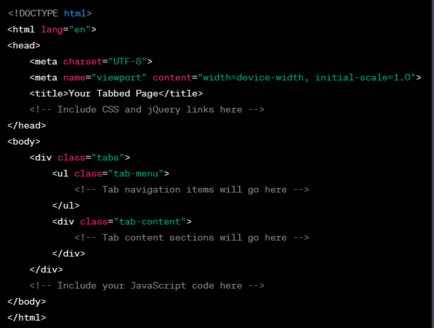
The markup is self explanatory. While the title attributes might seem to be extra, in this case they are needed for the jQuery stuff. After reading your comments, I decided to update the title attribute with name. This way, you will avoid seeing unnecessary tooltip when hovering on the tabs.

<ul id="tabs">
    <li><a href="#" name="tab1">One</a></li>
    <li><a href="#" name="tab2">Two</a></li>
    <li><a href="#" name="tab3">Three</a></li>
    <li><a href="#" name="tab4">Four</a></li>    
</ul>

<div id="content"> 
    <div id="tab1">...</div>
    <div id="tab2">...</div>
    <div id="tab3">...</div>
    <div id="tab4">...</div>
</div>

So, here are the ingredients:

  • #tabs – an unordered list that holds the tab navigation items.
  • #content – a wrapper for each tab content.

The CSS

Below you’ll find the CSS lines necessary for creating these tabs. Also, the demo source contains all the prefixed CSS3 properties.

#tabs{
  overflow: hidden;
  width: 100%;
  margin: 0;
  padding: 0;
  list-style: none;
}

#tabs li{
  float: left;
  margin: 0 .5em 0 0;
}

#tabs a{
  position: relative;
  background: #ddd;
  background-image: linear-gradient(to bottom, #fff, #ddd);  
  padding: .7em 3.5em;
  float: left;
  text-decoration: none;
  color: #444;
  text-shadow: 0 1px 0 rgba(255,255,255,.8);
  border-radius: 5px 0 0 0;
  box-shadow: 0 2px 2px rgba(0,0,0,.4);
}

#tabs a:hover,
#tabs a:hover::after,
#tabs a:focus,
#tabs a:focus::after{
  background: #fff;
}

#tabs a:focus{
  outline: 0;
}

#tabs a::after{
  content:'';
  position:absolute;
  z-index: 1;
  top: 0;
  right: -.5em;  
  bottom: 0;
  width: 1em;
  background: #ddd;
  background-image: linear-gradient(to bottom, #fff, #ddd);  
  box-shadow: 2px 2px 2px rgba(0,0,0,.4);
  transform: skew(10deg);
  border-radius: 0 5px 0 0;  
}

#tabs #current a,
#tabs #current a::after{
  background: #fff;
  z-index: 3;
}

#content
{
    background: #fff;
    padding: 2em;
    height: 220px;
    position: relative;
    z-index: 2;	
    border-radius: 0 5px 5px 5px;
    box-shadow: 0 -2px 3px -2px rgba(0, 0, 0, .5);
}

The jQuery

There is nothing to add here, it’s similar to my previous tabs article.

<script src="http://code.jquery.com/jquery-1.7.2.min.js"></script>
<script>
$(document).ready(function() {
    $("#content div").hide(); // Initially hide all content
    $("#tabs li:first").attr("id","current"); // Activate first tab
    $("#content div:first").fadeIn(); // Show first tab content
    
    $('#tabs a').click(function(e) {
        e.preventDefault();
        if ($(this).closest("li").attr("id") == "current"){ //detection for current tab
         return       
        }
        else{             
        $("#content div").hide(); //Hide all content
        $("#tabs li").attr("id",""); //Reset id's
        $(this).parent().attr("id","current"); // Activate this
        $('#' + $(this).attr('name')).fadeIn(); // Show content for current tab
        }
    });
});
</script>

Again, I updated a bit the above code to add detection when clicking on the current tab. Now, everything should be just fine. Thanks for your suggestions!

View demo

The end (of this tutorial)

This is just another small example that shows the CSS3 awesomeness. Everything is great also for older browsers, the tabs degrade nice.

So, having said that, I hope you liked this article and thanks for reading it!

76 thoughts on “CSS3 & jQuery folder tabs

    • Hi, first of all, when you hear CSS3, you should know that its features are not available for older browsers.

      Also, it works perfectly on IE9 and IE10 preview. I think I specified that “the tabs degrade nice” on older browsers.

  1. Really great tabs tutorial. Will publish this soon on my blog too….

    just tell me one thing, what is the difference between
    a::after and a:after???

  2. Can you provide some insight on making this flipped so the tabs are at the bottom but still preform the same? Thanks and excellent post.

    • Hi Red. Fantastic script. Thanx a lot. To solve the IE8 problem of highlightning you can just single the double pseudos (Ex.: #tabs a::after –>>#tabs a:after… and so on) That is not the fine art of CSS3, but it helps ;-)

  3. I implemented this on my own project… it looks good except it seems like it won’t display divs nested within the “tab*” divs…

    Is this an expected issue or am I missing something? Please help…

    • Change this line
      $(“#content div”).hide(); // Initially hide all content
      to
      $(“#content”).children(“div”).hide(); // Initially hide all content

      and

      $(“#content div”).hide(); //Hide all content
      to
      $(“#content div”).children(“div”).hide(); //Hide all content
      ========================================================

      Anyone have this problem if tabs are somewhere below clicking it causes the page to jump to the top of the page. With other code return false; does the trick but apparently e.parentDefault() is the right way to do it. Solutions please.

  4. Sorry, I meant not the titles per se but rather the title-attribute so that on mouse-hover the tooltips don’t say “tab1″, “tab2″, etc. Thx.

  5. Hello Red, Awesome stuff!
    I’m pretty new to this an have a question. How do you change the attributes matching the 2nd style. ( Not shuffle the pages but make them fade in and out?)
    Thanks a bunch!

  6. Very clean and goot tut, i’ve implement that thing and it works very well in diffrent browsers, but it dosent work in safari on mac. Content tab divs not hiding … Any ideas?

  7. It is a nice tuts Red. Implemented in my project but when I have the content with 2 tables of 5 rows in, the bottom table rows goes below the tab content. Is there way to have unlimited content space or maybe a scroll bar implementation? Any suggestion?

  8. Hi Red,

    those are really nice tabs. I have a slightly off-topic question. Say I wanted to use your tabbed menu on a horizontal scrolling site. I applied position: fixed; on #tabs, but actally I only want the tabs to be fixed horizontally not vertically. How would I do that?

    Cheers.

  9. Hi Red,
    thanks for this awesome tutorial. Works a charm. I’d like to run another script in one of those tabs (I want to embed a commenting function), but it won’t show up. If I place the embedded script elsewhere (outside the tabbed menu) it works. Any ideas?
    Thanks in advance.

    • Hi Friederike, I’m not sure what your problem is exactly.

      Maybe you can contact me using the contract page form and try sending me a link or something and I’ll get back to you.

  10. Hello Red,
    Tank you for your script. I have one little problem, I am surprised, that nobody mentioned this.
    In your code you have fixed height for #content -220px. When you remove it or put 100%, then when you click through the tabs – page jumps. Is there a way to fix it? My content for tabs has different height, so I can not have the same height. If I specify height for #tab1 and #tab2, it does not do the trick.
    By the way, you have () at the end of java script code. This cause an error in ie8.

    • Sergey, that’s exactly the reason why I added a fixed height for the content: to prevent page “jump”. I think there’s no magic solution here, either you keep using a fixed height for all your contents, either you remove the height and you’ll have an auto height.

      Also, thanks for the heads up regarding the closing brackets. The thing is that initially I wanted to use a self invoking anonymous function. I guess that’s why I forgot to remove them when I edited the code.

  11. Hey Red, great tabs and tutorials… I love them all!

    I was wondering if their is a way either in jQuery or JavaScript (or even in simple HTML) to have the tabs made current by either an ID or name from the URL. Like this: page.html#tab3 and tab three will be selected and opened.

    Thanks!

  12. This is a great solution! I am using a modified version of Share Point and there no “tab templates”, so inserting the HTML into an iFrame works perfect…well, that is in all browers except IE8…only if rounded corners were recognized..Great work Red…I am becoming a huge fan of yours.

  13. xx
    xx

    In this situation, i think code has some problem,
    Other Divs do not appear.
    my solution is like that

    $(document).ready(function () {
    $(“#content #tab1″).hide(); // Initially hide all content
    $(“#content #tab2″).hide(); // Initially hide all content
    $(“#tabs li:first”).attr(“id”, “current”); // Activate first tab
    $(“#content #tab1:first”).fadeIn(); // Show first tab content

    $(‘#tabs a’).click(function (e) {
    e.preventDefault();
    if ($(this).closest(“li”).attr(“id”) == “current”) { //detection for current tab
    return
    }
    else {
    $(“#content #tab1″).hide(); // Initially hide all content
    $(“#content #tab2″).hide(); // Initially hide all content
    $(“#tabs li”).attr(“id”, “”); //Reset id’s
    $(this).parent().attr(“id”, “current”); // Activate this
    $(‘#’ + $(this).attr(‘name’)).fadeIn(); // Show content for current tab
    }
    });
    });

  14. Hi. I tried your code but everytime when I change the colors of the tab, they work properly in all browsers except for IE9. Could you help me?

  15. Wow! The tab menu looks great on my website–except that I don’t have a clue how to go about connecting the menu’s plumbing with my website’s plumbing.

    In other words, what do I do with the 2nd part of the html:


    For example, do I add etc. to the top & to the bottom of each specified page’s body html?

  16. This is a great tutorial and the tabs look great in Mozilla Firefox. However, I lose all the formatting and rounded corners in IE9. I have went over and over the tutorial today and cannot seem to find where I am stuck. Any help would be appreciated!!

  17. hi
    I implemented this on my own project… it looks good except it seems like it won’t display gridview within the “tab*” divs…
    can any body help me?
    tnx

  18. Thanks for this awesome tut, Red. Works very well, could make it ready for any browser with some optional css stuff.

    But my question is almost the same as Stephen on May 13, 2012 at 00:15:
    How can I hash the URL like: meinweb.com/index.html#page3?

  19. Hi freinds! plz help me to solve my problem.i added this j query Tap too my asp.net web site .but when i put a datagrid view in this tap,and run the project,I cannot see the datagrid view.it seems that, the Tab disaapear my data grid view.Why?who can help me?

  20. Hi guys i’m experiencing some problems with this widget. This does not work propperly when you have many divs nested inside your #tab id. It boils down to the fact that all the divs are being hidden under the tab div and only the first div is being displayed.

    How would I fix this?

  21. Hi Red,
    This is a great tutorial and i used this for my project. unfortunately, got some problems while using. There are some img tags on my tab content and after the activating the tab by click event, i found there are no more img tags on the content. what could be the reason??

    • Nick, as I notice, the look you’re trying to achieve is pretty similar to the one presented in this article.

      So, beside using :after:, you’ll also need the ::before pseudo element which is basically a flipped version of :after:.

      Maybe this tutorial I wrote on building CSS3 breadcrumbs will help you.

      Good luck!

  22. Hi,

    Great tutorial, very nice :)
    But when I want to make 2 diffrent columns in a tab disappears all the text.
    Can you help me?

  23. Hi red, thanks for this amazing tutorial.

    I need to implement 2 tabs on a same page but of different sizes (one is 250px width, another one 6700px, one displays list, the other displays informations), is it possible by changing the class id of the second tab ? I tried it but actually it does’nt seem to work…

    Thanks

  24. Hi again, I think I didn’t express very well my request : I would ask you how to include two folder tabs without confusion between them ?

    I tried to use “tab1 to tab5″ for the folder tabs n°1 and “tab6 to tab10″ for the other one, but it doesn’t work at all, even if i give the second folder new id and CSS classes…

    Thanks for your answer

  25. Perfect for what I was looking for. How do I change the default tab? So if I want to display the second tab on page load.

    Thanks!

  26. Ok I think I found my own answer. In the jQuery I replaced First with eq(1) . It’s zero based so eq(0) would be the first tab, etc. Thanks again for this tutorial.

  27. To prevent jump to the top on click tab i solved it changing the order of lines for show new tab before hide another one. Like this:

    $(“#tabs li”).attr(“id”,”"); //Reset id’s
    $(this).parent().attr(“id”,”current”); // Activate this
    $(‘#’ + $(this).attr(‘name’)).fadeIn(); // Show content for current tab
    $(“#content div”).not(‘#’ + $(this).attr(‘name’)).hide(); //Hide all content

    Note: i’ll hide all, except fadeIn div showed

  28. As I can pass paremeters the div I want to activate, for example
    I’m on the second div I have a form and record after record data and loading the page to activate the second div

Leave a Reply

Your email address will not be published. Required fields are marked *

You may use these HTML tags and attributes: <a href="" title=""> <abbr title=""> <acronym title=""> <b> <blockquote cite=""> <cite> <code> <del datetime=""> <em> <i> <q cite=""> <strike> <strong>